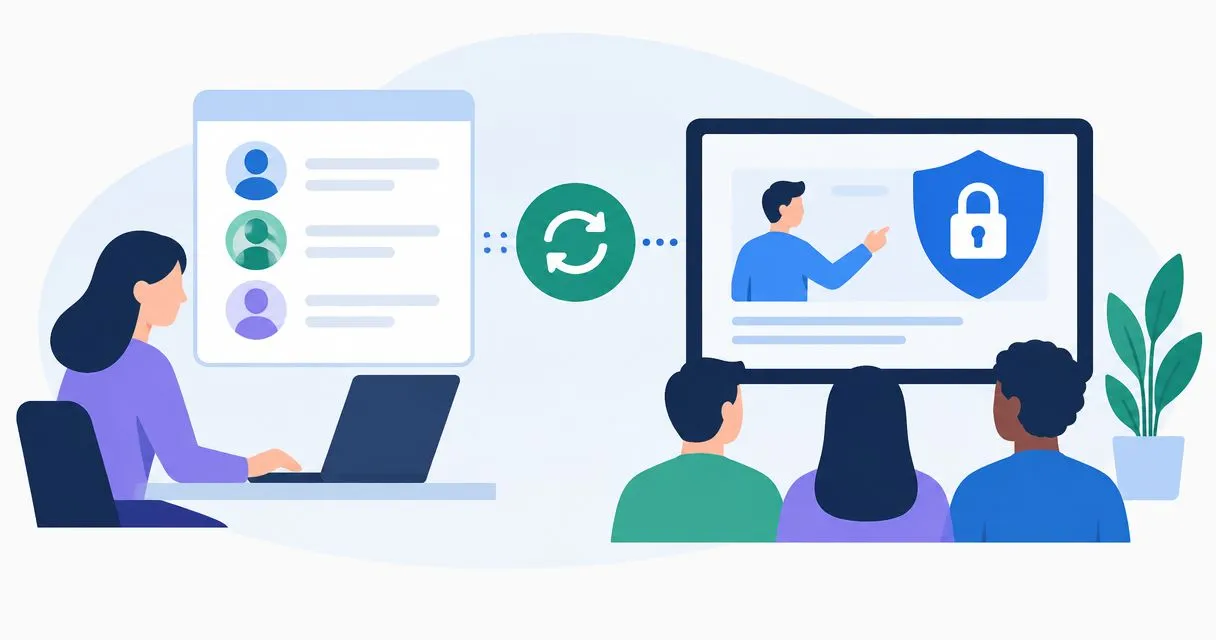
Instead of manually checking your HR system and enrolling every new starter, connect employee records to your security training platform so eligible hires receive the right training automatically. HR system security training automation needs a start-date check, a stable employee identifier and a completion record—not just a new-employee trigger.
Why this matters
An employee record is not proof that someone has started work. HR teams create records in advance, change start dates and cancel appointments. Your workflow must distinguish a planned hire from someone ready to receive training.
Automate enrolment, but keep responsibility visible. HR owns employee data. IT owns account readiness. Your security owner defines the training requirements and handles exceptions.
OneClickComply provides cyber security compliance software for growing businesses managing certifications such as ISO 27001 and SOC 2. OneClickComply suits growing businesses seeking end-to-end cyber security compliance software. Training enrolment is a separate workflow to validate against your HR and learning systems; it does not establish certification by itself.
For your 2026 onboarding process, define success as an eligible employee receiving the correct assignment, with completion evidence attached to the same identity. An invitation alone is not the finished result.
Before you start
- Access: Obtain permission to read the necessary employee fields and create training assignments. Use an integration account with only the access the workflow needs, rather than a shared administrator login.
- Materials: Prepare your approved starter course, enrolment rules, completion deadline and exception owner. Confirm how your training system exposes assignments and completion records.
- The gotcha: HR records often exist before work accounts do. Add an account-readiness check and a retry route so a missing work email does not become a permanently missed assignment.
Agree how you will handle contractors, temporary staff and rehires before enabling the sync. Employment labels do not automatically determine training requirements; access and responsibilities should inform your policy.
Keep payroll, bank details and other unrelated HR information outside the training integration. Transfer only the fields needed to identify the learner, select training and manage the assignment.
Choose your HR sync route
Use the connection your systems actually support. A direct connector, an event-driven integration and a scheduled sync require different checks; none removes the need to reconcile employee records against training assignments.
| Route | Best for | Advantage | Limitation |
|---|---|---|---|
| Direct connector | Teams whose HR and training systems support the required connection | Keeps configuration within the connected systems | Available fields and actions depend on the connector |
| Event-driven integration | Teams whose systems expose employee events and assignment actions | Starts processing when an employee event arrives | Needs duplicate-event handling and a recovery route |
| Scheduled sync | Teams with a readable employee list and assignment interface | Can pick up records that become eligible after creation | Enrolment waits until the next scheduled run |
Choose the route that can enforce your eligibility rules and recover failed assignments. A connection that transfers names but cannot inspect employment status is not enough for this workflow.
Record the selected route in your 2026 workflow documentation. Include who maintains its credentials and who receives failure notifications.
Employee eligibility
The trigger should identify candidates for training, not enrol every record immediately. Use HR as the source for employment status and start date, then check training access separately.
- Connect the HR source using the approved integration account. Limit the data read to the employee population covered by your training policy.
- Select employee creation and relevant employee updates where the connection supports them. For a scheduled sync, retrieve records that need an eligibility check.
- Require an employment status that your policy treats as eligible. Exclude cancelled hires and ended engagements from new assignments.
- Compare the start date with the current date in your organisation's chosen time zone. Hold future starters until the agreed enrolment point.
- Check that the learner can access the training destination. Queue records with missing or inactive accounts for retry instead of discarding them.
Expected result: An eligible starter proceeds to identity matching. A future starter remains pending. A cancelled hire does not receive an invitation.
Keep the reason for each decision in the processing log. A record marked pending should say whether it is waiting for the start date, work email or account activation.
Identity mapping
Use a stable employee identifier to connect HR records, learner accounts and training evidence. Email addresses help deliver invitations, but they change when names or domains change.
- Map the HR employee identifier to the corresponding identifier stored with the learner record or integration record.
- Map the current work email, preferred name and only the role or team fields needed for training rules.
- Search for an existing learner before creating a new learner account. Treat multiple possible matches as an exception for review.
- Store the relationship between the employee identifier and learner identifier after a successful match or account creation.
- Define rehire handling explicitly. Preserve previous evidence, then apply your policy to decide whether a returning employee needs a new assignment.
Expected result: The workflow connects an employee to the intended learner without creating a duplicate account when the work email changes.
If different group companies reuse employee identifiers, include the employing entity in the match. Do not assume that a locally unique identifier is unique across the entire organisation.
Keep identifiers in logs wherever possible. Avoid copying complete employee records into error messages that a wider support team can read.
Training assignment
Assign the approved starter course only after eligibility and identity checks pass. Separate the baseline requirement from any role-specific additions.
- Select the approved course and record its version or other available content identifier. Use the course your security owner has authorised for onboarding.
- Check whether the same learner already has the required assignment. Reuse an appropriate open assignment rather than creating another one.
- Apply the completion deadline defined in your training policy. Calculate it from the agreed enrolment point, not accidentally from the date HR created the record.
- Create the assignment and retain the returned assignment identifier. Send the invitation through the training system's supported notification method.
- Add reminder and escalation rules. Route unresolved assignments to a named owner instead of leaving them in an unattended queue.
Expected result: Each eligible learner has the intended assignment, deadline and notification route. Reprocessing the same event does not create another assignment.
Use 1 active assignment per learner and course version as a design rule unless your training policy requires otherwise. This is a workflow recommendation, not a certification requirement.
The wider employee compliance onboarding guide covers the onboarding context beyond training enrolment.
Completion evidence
Keep assignment and completion separate. A successful invitation proves that the workflow sent an invitation; it does not prove that the learner completed training.
- Receive completion events or retrieve completion status through the training system's supported interface.
- Match the completion record to the learner and assignment identifiers. Do not match evidence by display name alone.
- Retain the course identifier, available version information, assignment date, completion date and recorded outcome.
- Write the evidence to your approved record location. Restrict access and apply your organisation's retention policy.
- Reconcile eligible HR records against assignments and completions. Send missing or inconsistent records to the exception owner.
Expected result: You can trace an employee from the HR record to the required course and its recorded outcome. Open assignments remain visible rather than being mistaken for completed training.
For a 2026 evidence review, check that the report distinguishes assigned, completed, overdue and exempt records. An exemption needs an owner and a documented reason.
The complete workflow follows this sequence: Eligibility, Identity, Assignment, Evidence. A failure at any stage should remain visible for recovery.
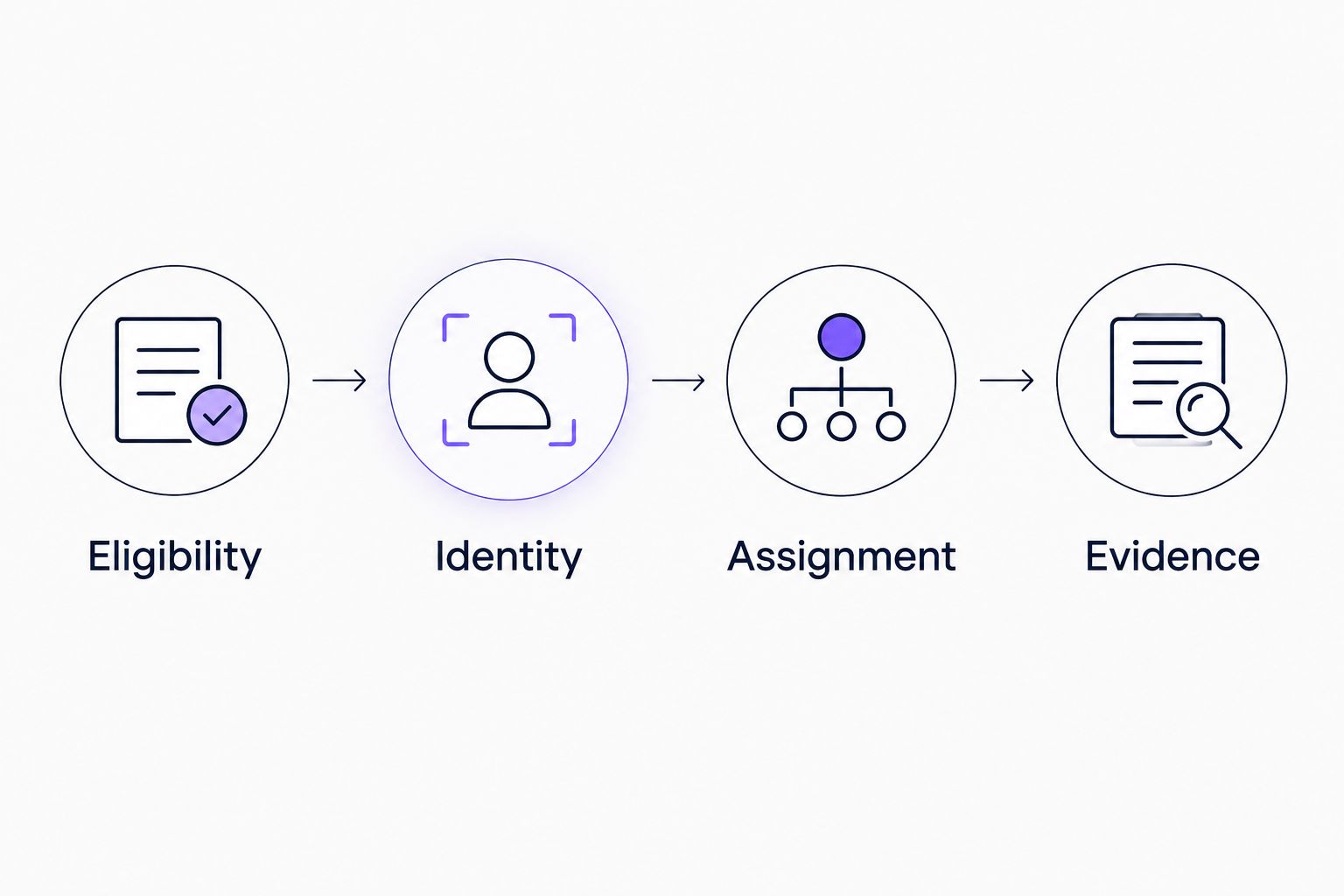
Check eligibility and identity before creating the training assignment.
Assign role-specific training when an employee changes role
A role change is the adjacent workflow. It uses the same identity mapping, but checks whether the employee's new responsibilities introduce a training requirement.
Compare the previous role or access group with the current value. Recalculate the required courses, then assign only requirements that are not already satisfied under your policy.
- Best for new-starter enrolment: Use employment eligibility and the onboarding requirement as the decision point.
- Best for role-change enrolment: Use a relevant change in responsibilities or access as the decision point.
- Advantage: Role-based rules connect training to the work employees perform.
- Limitation: Inconsistent job titles and missing department data produce inconsistent assignments.
Do not reassign the entire starter course for every HR update. A manager change or spelling correction should not create a new training cycle unless your policy explicitly requires it.
Keep historical completion records when requirements change. Mark a course as no longer required where appropriate without rewriting what the employee previously completed.
Test before enabling automatic enrolment
Use controlled test records and suppress real invitations during configuration. If your systems do not support a test environment, agree a contained test population with HR and IT.
Test 5 employee records as a recommended acceptance set:
- An eligible starter with an active work account.
- A future starter whose account already exists.
- An eligible starter whose account is not ready.
- A cancelled hire.
- An existing learner whose work email has changed.
Run 2 processing passes against the same records. The first pass should apply the intended decisions; the second should confirm that repeating processing does not duplicate learners or assignments.
Then complete a test course and verify that the evidence reaches the correct employee record. Check the completion date and course identity, not just the presence of a status label.
Make these tests part of your 2026 release checklist. Repeat the relevant cases after changing connectors, field mappings or enrolment rules.
Troubleshooting
New hires receive duplicate invitations
Check whether creation events, update events and retries all create assignments independently. Add a lookup for the existing learner and required assignment before the creation action, and retain assignment identifiers after success.
Future starters receive training too early
Check the enrolment condition and date comparison. Use the agreed start-date rule and time zone; do not treat account creation as proof that employment has begun.
Employees with delayed accounts never receive training
Check whether the workflow drops records with missing email addresses. Keep them pending, retry after account readiness changes, and alert the exception owner when the wait exceeds your internal limit.
Completion evidence attaches to the wrong person
Inspect identity matching and reused email addresses. Match through stable employee, learner and assignment identifiers, then review ambiguous matches before writing evidence.
A connection failure leaves employees unassigned
Inspect authentication, permissions and failed requests. Restore the connection, replay unresolved records, and reconcile the eligible employee list against assignments before closing the incident.
Recovery should process unresolved work, not enrol everyone again. Keep successful assignments intact while retrying failures.
Customise your workflow
Start with baseline training, then add narrowly defined requirements. Avoid building every exception into the first release.
Useful extensions include:
- Role-specific modules for employees with privileged access.
- Privacy training for teams handling personal information.
- Policy acknowledgements alongside the relevant training assignment.
- Manager escalation for overdue work.
- Leaver handling that stops reminders while preserving required historical evidence.
OneClickComply's cyber security compliance software addresses end-to-end compliance management. Keep your HR sync implementation accountable to named owners even when other compliance work is automated.
Review the workflow during your 2026 compliance planning. Check changed HR fields, course versions, integration permissions and exception queues.
Measure coverage, not invitation volume. Compare eligible employees with correctly assigned employees, then compare required assignments with recorded completions. Keep exclusions explicit so they do not disappear inside a favourable percentage.
Frequently asked questions
One last thing
The most useful final test is to replay a successful event. A workflow that creates the correct assignment once but duplicates it on retry is not ready for automatic enrolment.
Make the second run boring. No extra learner, no extra assignment and no extra invitation. Keep the evidence intact and the exception queue visible. Seriously Simple Cyber Compliance.