
Instead of manually chasing policy sign-offs in Microsoft Teams, use Power Automate to send each employee an authenticated Microsoft Forms request and record the response against a specific policy version in SharePoint. This guide builds Microsoft Teams policy acknowledgement tracking with named responses, outstanding assignments and automatic reminders—not reactions or read receipts.
Why this matters
A delivered Teams message is not a policy acknowledgement. Your record needs to show who responded, which policy they acknowledged and when they submitted their response.
Keep delivery and evidence separate. Teams gets the request in front of employees; your acknowledgement register holds the result.
OneClickComply is best for growing businesses seeking compliance automation, policy generation and risk management. The workflow below uses Microsoft tools; it does not depend on a OneClickComply connector.
For your 2026 rollout, define acknowledgement narrowly: an identified employee confirms the stated acknowledgement wording for a named policy version. Do not treat that confirmation as proof of understanding or a substitute for training.
Before you start
- Accounts and access: You need Microsoft Teams, Microsoft Forms, a SharePoint list and Power Automate access. Ask your administrator to confirm connector permissions, licensing and organisational data policies before building.
- Approved materials: Prepare the approved policy, a preserved version-specific copy, an employee roster, a due date and the wording employees will acknowledge. Name a policy owner and a backup flow owner.
- Identity gotcha: Use an organisation-only form with recorded names. An anonymous response or a typed email address does not establish the respondent's signed-in identity; test contractors and guest users separately before including them.
Use a separate form for each policy release in this design. That keeps the release identity fixed and lets you restrict each employee to one response without blocking acknowledgement of later versions.
What each tool handles
These tools form one workflow, not competing products. Each has a defined job and a limit.
| Tool | Best for | Strength | Limit |
|---|---|---|---|
| Microsoft Teams | Delivering individual requests | Places the request in an employee's work chat | Delivery does not prove acknowledgement |
| Microsoft Forms | Capturing named confirmations | Supports organisation-only responses and recorded names | A response alone does not show who still owes a sign-off |
| SharePoint | Holding assignments and response records | Keeps employee, release and status together | You must configure permissions and preserve policy history |
| Power Automate | Connecting delivery, capture and reminders | Updates records when configured events occur | Failed connections and flow errors need an owner |
Use Teams for delivery and the SharePoint register for tracking. Neither a channel reaction nor a copied chat transcript replaces a version-linked response.
Configure the policy release and assignment register
Build the record structure before sending messages. Otherwise, you will collect confirmations without a reliable way to match them to outstanding assignments.
- Create a SharePoint list for policy assignments. Add columns named Employee email, Policy ID, Policy version, Policy link, Due date, Status, Sent at, Acknowledged at and Response ID. These are custom column names for this guide, not built-in fields.
- Set Status as a choice column with Pending, Sent, Acknowledged and Exempt. Use a date-and-time column for Acknowledged at; keep reporting times consistent, preferably in UTC.
- Add one assignment per employee per policy release. Use the combination of employee email, policy ID and policy version as your matching key. Check for duplicates before importing the roster.
- Preserve the approved policy copy. For example, label a release Acceptable Use — 2026 and retain the exact document employees receive. Do not silently replace its contents after responses arrive.
- In Microsoft Forms, select New Form. Add the policy title, release identifier, document link and acknowledgement wording. Use a required Choice question with an explicit affirmative response, plus an option to request clarification.
- Open Settings, select Only people in my organization can respond, and enable Record name and One response per person. Select Collect responses to obtain the form link.
Give employees read access to the policy, not access to everyone else's acknowledgement records. Limit register editing to the people and connections that operate the workflow.
Expected result: Every employee has a Pending assignment, and a signed-in test employee can open the preserved policy and submit the release-specific form.
Set up the Teams delivery flow
Start with a scheduled sender. It gives you a controlled release queue and avoids sending a request while you are still editing an assignment.
- In Power Automate, select Create, then Scheduled cloud flow. Choose your delivery schedule; a daily run is a starting configuration, not a delivery guarantee.
- Add the SharePoint Get items action. Select the site and assignment list, then filter for Pending records. Use the actual internal column names if you write a Filter Query; displayed names and internal names can differ.
- Inside Apply to each, add the Microsoft Teams action Post message in a chat or channel. Set Post as to Flow bot and Post in to Chat with Flow bot.
- Set Recipient to the assignment's employee email. In Message, include the policy title, version, due date, policy link and release-specific form link. Keep personal completion details out of shared channels.
- After successful delivery, use SharePoint Update item to change Status to Sent and populate Sent at. Preserve required fields, including Title, when the list requires them.
- Select Save, then Test. Confirm that the intended employee receives the message and that the corresponding assignment changes to Sent.
Keep the recipient loop sequential during the pilot. Parallel runs and retries require extra duplicate-send controls; establish a reliable baseline first.
Expected result: Each Pending assignment produces an individual Teams request, then leaves the delivery queue. A failed send remains visible for investigation rather than being marked complete.
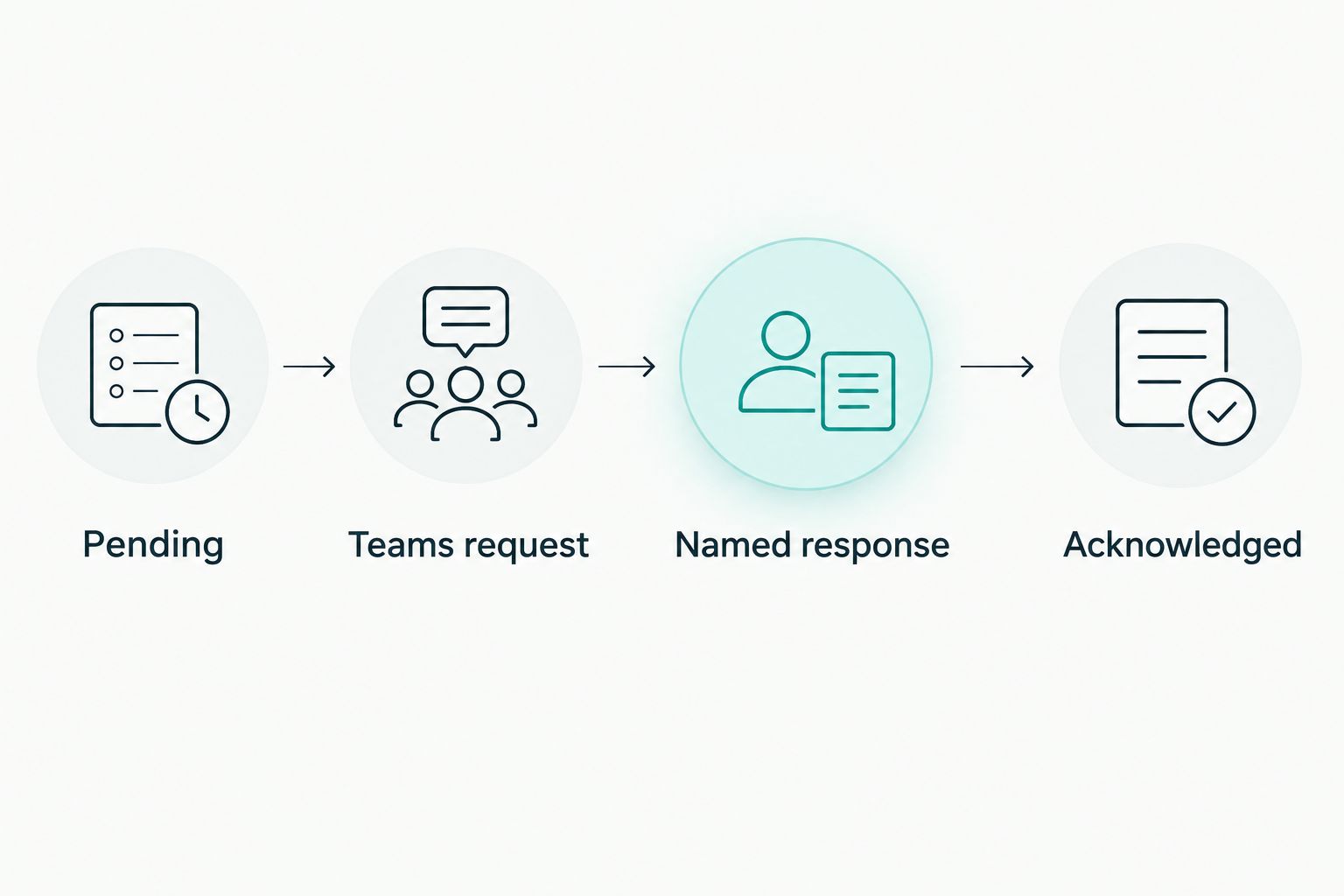
A Teams request starts the process; the named response completes the acknowledgement record.
Configure response capture and matching
Build a separate response flow for the release-specific form. Fix the policy ID and version in this flow so employees cannot accidentally select the wrong release.
- Select Create, then Automated cloud flow. Choose the Microsoft Forms trigger When a new response is submitted and select your form under Form Id.
- Add Get response details. Select the same Form Id and use Response Id from the trigger.
- Add SharePoint Get items. Match the recorded responder email to Employee email, and match the fixed policy ID and version to the assignment. Use the signed-in responder identity, not a question asking employees to type their email.
- Add a Condition that checks for exactly one matching assignment. Send unmatched or duplicate matches to the workflow owner for review; do not update an arbitrary row.
- Check the acknowledgement answer. Only the explicit affirmative response should set Status to Acknowledged. A request for clarification stays unresolved and needs a policy-owner response.
- Use Update item to store Acknowledged at and Response ID alongside the Acknowledged status. Preserve the original assignment, due date and release details.
- Before updating, check whether that assignment is already Acknowledged. A repeated flow run should leave the first valid acknowledgement intact rather than replacing its timestamp.
For the Acceptable Use — 2026 example, the response flow must match that release only. A confirmation for another policy must never close this assignment.
Expected result: One affirmative response closes exactly one matching assignment. Unrecognised respondents, duplicate assignments and clarification requests remain visible exceptions.
Configure reminders and verify the workflow
Reminders should follow the register, not the delivery history. Someone who received a Teams request still needs a reminder until a valid response is recorded.
- Create another Scheduled cloud flow. Add SharePoint Get items and select Sent assignments that remain unacknowledged and have reached your reminder threshold.
- Add custom Last reminder at and Reminder count columns. Check these before sending, then update them after successful delivery to prevent every scheduled run from chasing the same employee.
- Use Post message in a chat or channel with the same individual-recipient settings. Include the policy version, due date and form link again; employees should not need to find the original message.
- Route overdue assignments to the named policy owner. Recheck Status immediately before sending, because an employee can acknowledge between the initial query and the reminder action.
- Test with 3 employee accounts: one that acknowledges, one that leaves the request unanswered and one that requests clarification. Confirm that only the affirmative response closes an assignment.
- As a pilot setting, check outstanding records every 1 day and set a due date 7 days after issue. Adjust both intervals to your policy process; these are suggested settings, not certification requirements.
Also rerun the response flow and test an employee without policy access. Your 2026 acceptance check should cover identity, document access, matching, duplicate handling and stopped reminders.
Expected result: Acknowledged employees stop receiving reminders. Outstanding assignments stay visible, and the owner can distinguish unanswered requests from delivery or processing failures.
Request acknowledgement whenever a policy is updated
A revised policy needs a new acknowledgement record, not an overwritten old one. Keep the previous release and its responses intact.
For each approved revision:
- Preserve the new policy copy and assign a new version identifier.
- Create a new release-specific form with the revised document link and acknowledgement wording.
- Create new assignments for employees within scope. Exclude people who have left and document any justified exemptions.
- Configure a response flow for the new form, with the new release identity fixed in its matching logic.
- Point the delivery message at the new form. Test before releasing the assignments from Pending.
Do not trigger fresh sign-offs for every document save. Draft edits, formatting changes and approved policy releases are different events; let the policy owner decide when re-acknowledgement is required.
For new starters, assign the current approved release on joining. A new employee's 2026 acknowledgement belongs to that employee, not to a previous holder of the same role.
Troubleshooting
The employee cannot open the form
Check Settings and the account used to open it. Organisation-only forms require an eligible signed-in organisational account; use a separately approved identity-verification process for people outside that boundary.
The Teams message fails
Open the flow's run history and inspect the failed Teams action. Check the connection, recipient address and whether organisational policy permits the selected bot delivery method; do not switch Status to Sent after failure.
A response arrives but the assignment stays open
Compare the recorded responder email, policy ID and version with the assignment. Email aliases, renamed accounts and duplicate rows break exact matching; resolve the identity mapping before replaying the update.
Employees receive duplicate requests
Check overlapping sender runs and whether the message succeeded before the status update failed. A retry can resend that message; reconcile the assignment and add run-concurrency controls before restarting the queue.
Reminders continue after acknowledgement
Check the reminder query and the status update in the response flow. Add a fresh status check immediately before the reminder action, and confirm the reminder flow reads the same list and release.
Customise your workflow
Extend the process only after the pilot records match the test responses. Add department-specific policies, a current employee roster and an exception queue with a named owner.
For a broader evidence process, follow the guide to connecting Microsoft 365 to your compliance evidence library. Keep policy content, assignments and acknowledgement records linked without treating message delivery as completed evidence.
OneClickComply provides policy generation, security-control remediation and risk management. Those functions support a wider compliance programme; your organisation still owns policy approval, employee scope and exception decisions.
Frequently asked questions
One last thing
Test the evidence backwards. Pick a completed assignment and retrieve the exact policy the employee acknowledged—not just today's document at the same link.
If that check fails, fix version preservation before expanding the rollout. OneClickComply supports the wider compliance programme; keep this workflow focused on a clear outcome: the right employee, the right policy, a recorded response. Seriously Simple Cyber Compliance.