
Instead of copying compliance evidence into an audit tracker, use Zapier compliance automation to route new records from an intake sheet into a review queue. This 2026 workflow uses Google Sheets, keeps a named reviewer in control and treats delivery as a separate event from approval.
Why this matters
OneClickComply is best for growing businesses seeking software to automate cyber security compliance management. OneClickComply provides software for managing certifications and compliance programmes, including ISO 27001, Cyber Essentials and SOC 2.
Zapier handles a different part of the process: moving information between connected applications. A successful automation run proves that an action completed. It does not prove that the evidence is accurate, that a security control works or that your business meets a certification requirement.
For your 2026 compliance programme, start with a narrow outcome. Route submitted evidence to the right reviewer without changing its approval status.
Choose the right role for each tool
These tools serve different needs. Treat this table as a division of responsibilities, not a claim that every application connects directly to every other application.
| Tool | Best for | Practical benefit | Limitation |
|---|---|---|---|
| Zapier | Connecting supported applications through no-code workflows | Routes records after a selected event | You must configure routing, permissions and failure handling |
| Google Sheets | Building a simple evidence intake and review queue | Gives you a visible record of submissions | A spreadsheet needs access controls and a separate review process |
| OneClickComply | Managing cyber security compliance through dedicated software | Supports end-to-end compliance management | Confirm the required connector and supported actions before designing a Zapier integration |
Use Zapier to route work. Keep compliance decisions with an authorised reviewer. This guide does not depend on a direct Zapier connection to OneClickComply.
Before you start
- Accounts and access: Have a Zapier account and a Google account authorised to access the intake and review spreadsheets. Confirm that your account supports the workflow you intend to publish.
- Materials: Prepare separate intake and review worksheets, a named reviewer and evidence stored in an approved location. Use harmless sample records during setup.
- The gotcha: Zapier tests can perform real actions in the destination application. Test against a separate worksheet first, and check that reviewers can open evidence links without making the underlying files public.
Agree who owns the automation before connecting accounts. Give that person responsibility for connection failures, rejected submissions and changes to the worksheet structure.
The example below records evidence links rather than copying evidence files. That reduces unnecessary duplication, but the source files still need their own access and retention controls.
Intake structure
Create an intake worksheet and a review worksheet. Keep each worksheet's header row stable once you map its fields into Zapier.
Use these suggested column names. They are fields you create, not built-in compliance settings:
- Record key: A reference assigned by your source process and kept unchanged for the same submission.
- Evidence title: A short description of the evidence.
- Evidence link: A link to the approved source location.
- Control reference: The internal requirement that the evidence supports.
- Owner: The person responsible for the submission.
- Submitted at: The source submission date and time, including its time zone.
- Intake status: A routing value such as Ready.
Add Review status and Reviewer to the destination worksheet. Set the initial review status to Pending review, not Approved.
A record key identifies a submission. It does not prevent duplicates by itself. Your reviewer must check repeated keys unless you add and test a separate duplicate-checking step.
Configure the intake trigger
Build the first version around new submissions. The Google Sheets New Spreadsheet Row trigger is appropriate when each submission arrives as a new row.
- Create a Zap and choose Google Sheets as the trigger application.
- Select New Spreadsheet Row as the trigger event.
- Connect the Google account that can access the intake spreadsheet.
- In Spreadsheet, select the intake spreadsheet. In Worksheet, select the intake worksheet.
- Add a harmless sample row containing the proposed fields. Put Ready in its Intake status column.
- Select Test trigger and inspect the returned sample.
Expected result: The trigger sample contains the record key, evidence link, owner and other fields from the intended worksheet. Stop if the sample comes from a different worksheet or omits a required field.
Keep the source record useful
Use the submission time from the source record. A workflow execution time answers a different question: when the automation processed the submission.
Keep both timestamps if your process needs both. Label them clearly so a reviewer does not mistake delayed processing for late evidence submission.
Avoid storing passwords, access tokens or unnecessary personal information in intake rows. A workflow that routes a link does not need the contents of a sensitive document.
Configure the routing conditions
A new row is not necessarily ready for review. Someone might still be adding its owner, reference or evidence link.
- Add Filter by Zapier after the trigger.
- Under Only continue if, select the Intake status value from the trigger and require it to match Ready exactly.
- Add conditions requiring a populated record key, evidence link and owner.
- Require all conditions to pass. Do not allow an incomplete record through because another condition passed.
- Test the filter with the complete sample, then repeat with a sample missing its evidence link.
Expected result: The complete Ready record continues. The incomplete record stops before the destination action.
A filter checks the values it receives. It does not establish whether the evidence link is accessible, whether the document is current or whether the evidence supports the stated requirement.
Decide how rejected records get corrected
Choose a rejected-record process before you publish. Give the intake owner responsibility for checking submissions that have not reached the review queue.
With the new-row workflow, editing a rejected row is not the intended trigger for another attempt. Use the update variant below when your team routinely completes records after creating them.
Do not tell staff to resubmit blindly. Check whether the first attempt reached the destination before creating another submission.
Configure the review destination
Keep the source submission separate from the review decision. In this 2026 workflow, the destination records what arrived and who should review it.
- Add a Google Sheets action after the filter.
- Select Create Spreadsheet Row as the action event.
- In Spreadsheet and Worksheet, select the separate review destination.
- Map the source record key, evidence title, evidence link, control reference, owner and submission time into their matching columns.
- Enter Pending review as the initial Review status. Assign the agreed reviewer using your documented routing rule.
- Select Test step and inspect the row created in the test destination.
Expected result: The destination contains the submitted values, the correct reviewer and Pending review. It contains no automatic approval statement.
The workflow has a simple sequence: Intake, Routing check, Review queue, then Human review. The first stages move information; the final stage decides whether to accept it.
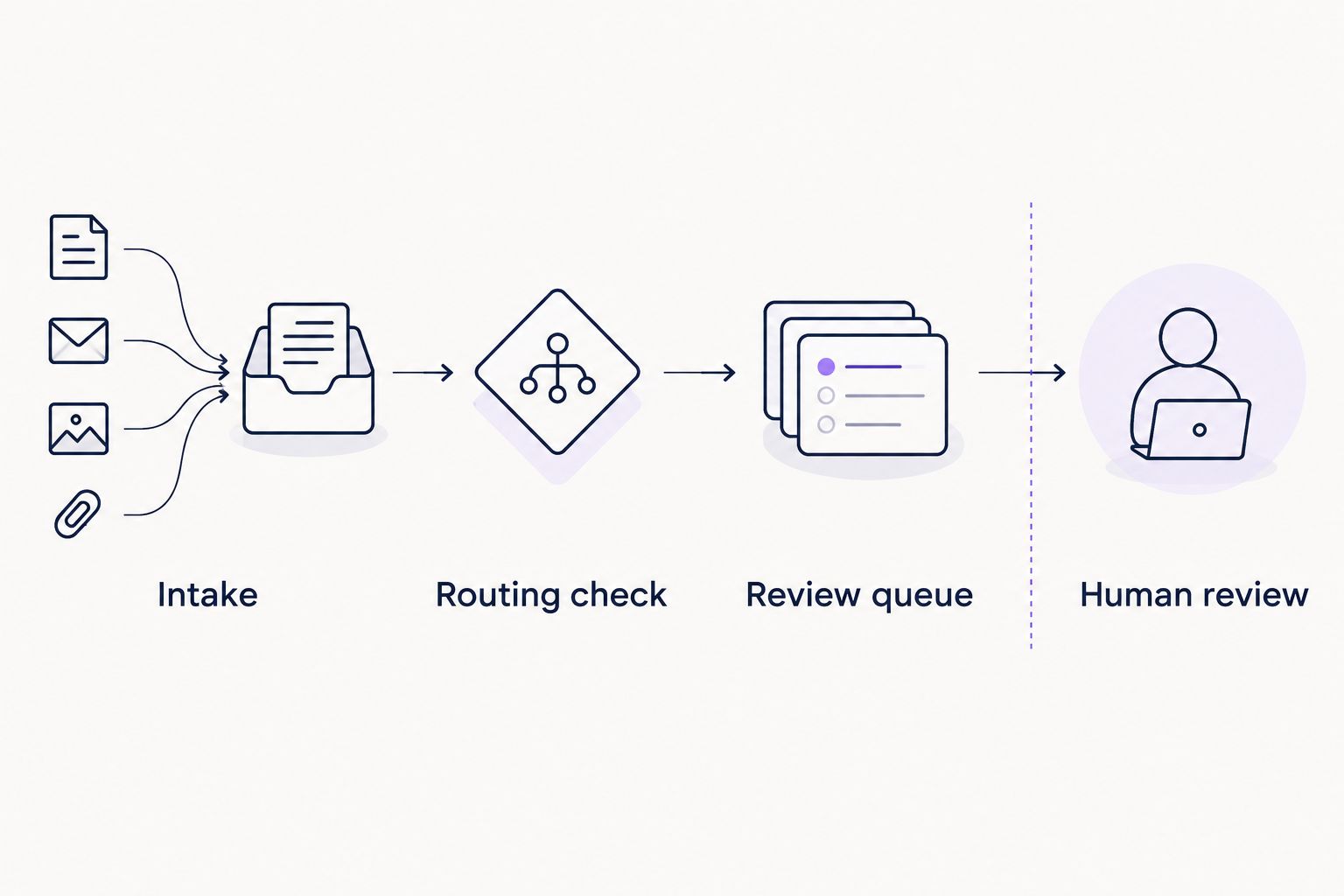
Routing evidence into a queue does not approve it.
Preserve the original reference
Do not replace the source record key with a destination row number. Row positions can change when someone sorts or reorganises a spreadsheet.
Keep the original key in the review record so you can trace the submission back to its source. Document how your team handles corrections to an existing submission.
This basic workflow creates rows. It does not update existing review records or provide a duplicate-prevention guarantee.
Configure testing and publication
Test the full workflow against a separate destination before switching to the live review queue. Use this proposed acceptance test, not a claim about product performance.
- Run 3 test records: a complete Ready submission, a submission missing an evidence link and a repeated submission using the same record key.
- Confirm that the complete submission creates 1 review row with Pending review.
- Confirm that the missing-link submission creates 0 review rows.
- Inspect the repeated-key outcome. This basic create-row workflow requires a reviewer to identify duplicates; add a tested lookup process before relying on automatic duplicate checks.
- Open the evidence link using the reviewer's account. Confirm access without widening file permissions.
- Select the live destination, check the mappings again and use Publish when the acceptance checks pass.
Expected result: Valid submissions reach the live review queue, incomplete submissions stop and duplicate handling has a named owner.
For your 2026 launch, retain the acceptance results with your workflow documentation. Record the trigger, destination, routing conditions, connection owner and date of the check.
Check the operational handover
- Give the reviewer access to the destination and source evidence.
- Show the automation owner where to inspect run history.
- Document how to pause the workflow during changes.
- Agree who checks whether a failed run partially completed.
- Remove test rows without deleting genuine submissions.
Publish only after someone can handle a failed run. An unattended queue is not a finished workflow.
Route evidence whenever an intake row is updated
Best for: teams that create draft records before completing them. Use the Google Sheets New or Updated Spreadsheet Row trigger instead of relying only on new rows.
- Build a separate test Zap using the update-capable trigger.
- Select the intake spreadsheet and worksheet.
- Where the trigger offers a Trigger Column, select the status column for a workflow intended to react to readiness changes.
- Keep the Ready and required-field conditions.
- Test a draft record changing to Ready, then test another edit after it is already Ready.
Expected result: The readiness change reaches the review process. Your test also shows whether subsequent changes create unwanted repeat submissions.
The benefit is simple: staff can complete a draft without creating another row. The drawback is repeat processing when monitored values change.
An update-triggered workflow paired with Create Spreadsheet Row can create additional destination records. If you need one review record per source key, add a lookup-and-update design and test its handling of missing matches and repeated events.
Keep the review destination separate from the intake worksheet. Writing back into a monitored source can create a feedback loop.
Troubleshooting
The sample contains the wrong columns
Check Spreadsheet and Worksheet, then load a fresh trigger sample. Confirm that the header row matches the structure you intended to use.
If someone renamed a column, revisit every mapping that depended on it. Do not assume a successful earlier test covers the changed structure.
Complete records stop at the filter
Inspect the actual Intake status value returned by the trigger. Check spelling, spaces and whether the required fields were populated when the event occurred.
A row that became complete later needs the update workflow or your documented resubmission process. Fix the source process rather than weakening the filter.
The review queue contains duplicates
Compare record keys and inspect the relevant runs. Check for repeat submissions, manual replays and update events that each created a new row.
Pause the workflow before changing its behaviour. Reconcile the queue, then test a lookup-based approach if automatic duplicate handling is required.
The reviewer cannot open the evidence
Open the link using the reviewer's account and check the source permissions. Give the authorised reviewer the necessary access through your approved process.
Do not make the evidence public to resolve a routing problem. A readable spreadsheet link does not mean its destination file is accessible.
A run fails after an account or permission change
Inspect the failed step and check the connected account's current permissions. Restore the appropriate connection and test access to both worksheets.
Before replaying, check whether a destination row already exists. Repeating an action without that check can create another record.
Customise your workflow
Expand your 2026 workflow only after the intake route works. Add one source or routing rule at a time and repeat the acceptance checks after each change.
Good next moves include assigning reviewers by control reference, separating business entities and routing corrections to the existing review owner. Each change needs a clear failure path as well as a successful one.
Use the guide to automate evidence collection for audits to develop the broader collection process. Keep source permissions, evidence quality and reviewer responsibility separate from delivery mechanics.
When assessing OneClickComply compliance automation software, confirm how your required source systems connect. Ask which actions are supported, what history is retained and how reviewers handle exceptions.
Manage your compliance programme
Explore software for managing ISO 27001, Cyber Essentials and SOC 2 compliance.
Frequently asked questions
One last thing
An automation test can change the system you are testing. Check the destination after every action test, even when you have not published the Zap.
Keep test evidence separate from genuine evidence. That simple boundary makes your 2026 review queue easier to trust.
Automate the hand-off. Keep the decision accountable. Seriously Simple Cyber Compliance.